Tutorial
How to add an MCP server to MCPOrbit
MCPOrbit has no config file to edit. Add a server in one form: a Name, a Type, then the program and its arguments in two fields, or a URL. No restarts.
Mark
Head of Marketing, MCPOrbit
- Published
- Updated
- · Updated
- Read time
- · 7 min read
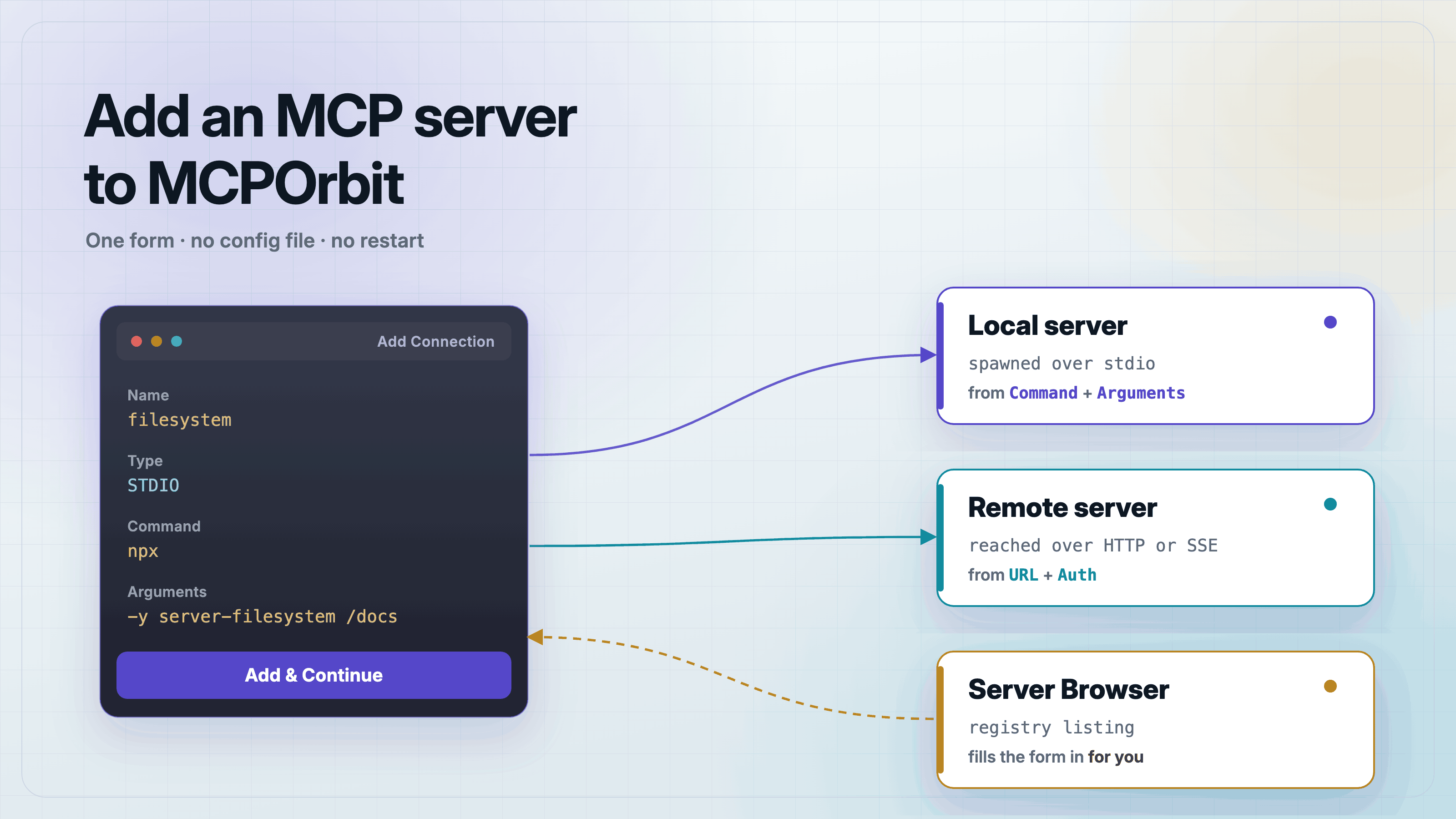
To add an MCP server to MCPOrbit, open the app and fill in one short form: a Name, a Type, then the program and its arguments for a local server, or a URL for a remote one. There is no config file to edit and nothing to restart. Save the form, press Connect, and the server's tools appear.
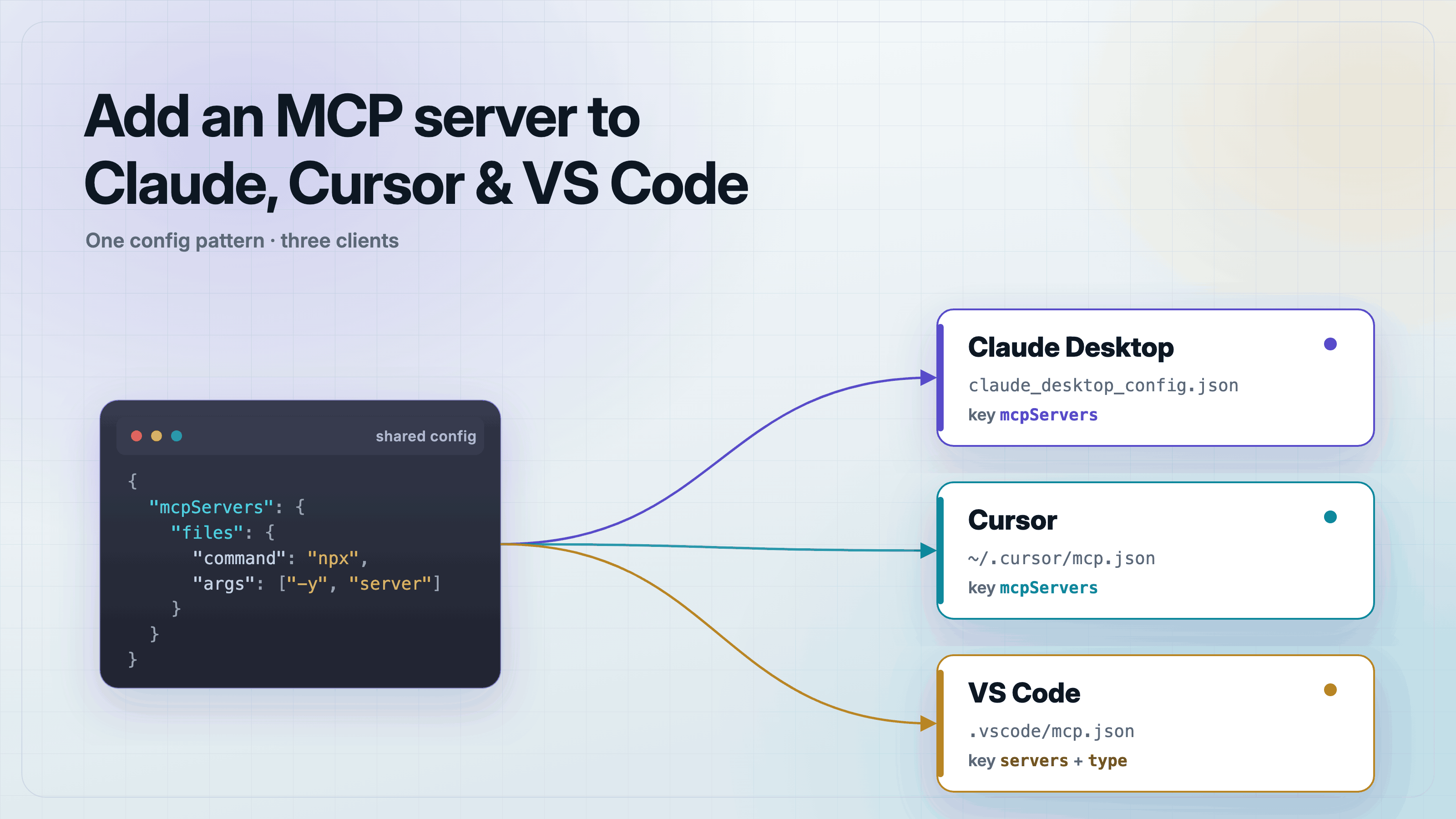
This is the part that works differently from every other client. Claude Desktop, Cursor, and VS Code each want you to find a JSON file on disk, get its top-level key right, and fully quit the app afterwards. MCPOrbit keeps the connection list itself, so the setup is a form and starting the server is one press.
One detail is worth knowing before you start. A README gives you the invocation as one line, but MCPOrbit takes it in two fields. Command is the program on its own, and Arguments is everything after it. You do the split, not the app.
Where does MCPOrbit keep its server config?
It does not have one you edit. The other three clients hand you a file path and expect you to keep the JSON valid by hand. MCPOrbit writes your connections to its own data file, mcporbit-data.json, in the application's data directory, and reads them back on launch. You never open it.
That removes two of the three ways this usually fails. A trailing comma cannot break your server list, and there is no top-level key to get wrong. What is left is the server itself, which is the part actually worth your attention.
How do I add my first server in the setup wizard?
On first launch MCPOrbit walks you through four screens: a welcome, a theme picker, a form headed Add your first connection, and a short confirmation. The middle two have a Back button, so you can change your mind on the way through.
The form asks for a Name and a Type. Type is three buttons: STDIO, HTTP, and SSE. STDIO is the one for a server that runs on your own machine, and it is already selected.
Then it gets narrow. A STDIO server gets a single field here, labelled Command, and there is no Arguments field on this screen. So the wizard can only finish a server whose whole invocation is one bare program name, and almost no MCP server is that. The official filesystem server is not:
Command:   npx
Arguments: -y @modelcontextprotocol/server-filesystem /Users/you/projects
           ^ the wizard has nowhere to put this line
Name does not fill itself in, so type one. Add & Continue stays dim until Name has something in it, and Name is the only thing it checks: a connection with an empty Command can still be saved from here, and it will fail when you try to connect it.
Add & Continue saves the connection and moves to the last screen. Skip moves on without saving anything. For most servers Skip is the right button, because the sidebar form on the other side has the Arguments field this screen is missing. Nothing is lost by skipping.
How do I add a server after setup?
Press Add Connection at the bottom of the sidebar. It opens a fuller version of the same form: the same Name and Type, then a Command field, a separate Arguments (space-separated) field, and a few more options below them. This is the form that can finish any server.
Here are the values for the official filesystem server. It makes a good first server because it needs no setup and no credentials. Note where the line breaks:
Name:      filesystem
Type:      STDIO
Command:   npx
Arguments: -y @modelcontextprotocol/server-filesystem /Users/you/projects
A local server also gets Environment Variables, which takes a JSON object, and Roots, described in the form as the folders offered to the server. A remote server gets Auth instead, with None, Bearer, and API Key.
Environment Variables is where a credential belongs. It takes a plain JSON object, the same shape as the env block in a Claude Desktop config:
{
  "GITHUB_PERSONAL_ACCESS_TOKEN": "ghp_your_token_here"
}
The save button at the bottom of the form behaves like the wizard's, and it is looser than you would expect. It stays off until there is a Name, and that is the whole check. It does not look at Command or URL at all, so a half-finished connection saves quite happily and only fails later, when you press Connect.
What does the Server Browser do?
Server Browser in the sidebar searches a public registry of MCP servers. Open a result and you get the server's icon, name, and version, a description, a Transport and Auth pair, and links to its repository and website. That is where the panel ends.
It is a reading surface, not an install button. Nothing in the detail panel adds the server, and there is no Add on it anywhere. Use it to work out whether a server is worth your time, then follow its Repository link to find the command it wants, and type that into Add Connection yourself.
That repository link is doing more work than it looks like. It is where a server's invocation and the names of the environment variables it expects are actually written down, and registries are often thin on both.
Not every registry reports a transport for every server. MCPOrbit prints Unknown in that row rather than leaving it blank, which is your signal to read the repository before you guess.
Should I pick STDIO, HTTP, or SSE?
Pick STDIO when the server runs on your machine. MCPOrbit starts the process itself and talks to it over standard input and output. There is no port and no authentication to arrange, which is why it suits most development work.
Pick HTTP when the server already runs somewhere and you reach it over the network. SSE is the older remote transport, kept for servers that have not moved off it. Both replace the Command field with a URL field:
Name:  my-remote
Type:  HTTP
URL:   https://mcp.example.com/mcp
For a remote server that needs a token, set Auth to bearer and paste the token below it. That input is masked, so the value does not sit on screen in plain text. If you are choosing between the two transports for a server you are writing, stdio versus Streamable HTTP covers the tradeoff.
How does MCPOrbit split the arguments?
A program and its arguments are two different things to the operating system, and MCPOrbit does not put a shell in between. Command goes to the system whole, as the program to run. Arguments is cut on spaces, and every piece becomes one argument. Nothing else happens to either field: there is no expansion, no globbing, and no pipes or redirects.
Because the cut is on spaces and nothing else, quotes are not honoured. This is the one case worth knowing about, and it bites the most ordinary path on a Mac.
Arguments: -y @modelcontextprotocol/server-filesystem "/Users/you/My Projects"

           arrives as four arguments, not three:
           -y
           @modelcontextprotocol/server-filesystem
           "/Users/you/My
           Projects"
The quote marks are passed through as characters, so the server reads "/Users/you/My as the directory and never sees the rest. There is no escape that gets around this in the current release. Point the server at a path with no spaces in it, or make a symlink to one, until the field learns to quote.
How do I know it actually connected?
Saving the form does not connect the server. It puts it in the sidebar with a grey dot next to it. Pick it, and the main panel says Not connected with a Connect button underneath. Press that.
The button reads Connecting... while it works. When it succeeds, the panel fills with three tabs, Tools, Resources, and Prompts, and the Tools tab lists what the server published: each tool's name, its description, how many parameters it takes, and a Copy Schema button. A populated Tools tab is the signal. The filesystem server publishes fourteen:
read_file, read_text_file, read_media_file, read_multiple_files,
write_file, edit_file, create_directory, list_directory,
list_directory_with_sizes, directory_tree, move_file,
search_files, get_file_info, list_allowed_directories
If it fails instead, the panel keeps the Connect button and puts the reason above it, in a red box, in monospace, exactly as the connection attempt reported it. That box is the debug surface. Read it before you change anything, because it usually names the problem outright.
To check that your path arrived intact, run one tool. The filesystem server publishes list_allowed_directories, which answers with the directories it was actually given. Open it in the Tools tab and press Run.
Compare what comes back with what you typed. If the directory in the answer is not the one you meant, the Command line is where to look, and an unquoted space is the usual reason. This is a better check than reading the form back, because it is the server telling you what it received.
Why isn't my server showing up?
Read the red box first. Four causes cover almost all of the rest.
- You saved the form and stopped there. Saving does not start a server. Pick it in the sidebar and press
Connect. - The program is not installed, or is not where MCPOrbit looks for it. The red box usually names it, and
ENOENTin that message means the program itself was not found. - A path in Arguments has a space in it, so it arrived as two arguments. Quotes will not save you here. Use a path without spaces, or a symlink to one.
- The server writes to standard output. On a
STDIOconnection that is the protocol channel, and a stray print can corrupt it. Send logs to stderr instead, which keeps the protocol channel clean and which how to log from an MCP server walks through.
Frequently asked questions
- Where is the MCPOrbit config file?
- There is not one you edit. MCPOrbit stores connections in its own data file,
mcporbit-data.json, and manages it for you. That is the main difference from Claude Desktop, Cursor, and VS Code, which all expect you to keep a JSON config valid by hand. - Do I have to restart MCPOrbit after adding a server?
- No. There is no restart anywhere in this. Saving puts the server in the sidebar, and you start it by pressing
Connect. Claude Desktop needs a full quit and reopen after a config change, and closing its window is not enough. This does not. - What goes in the Command field?
- The program on its own, and nothing else. For the official filesystem server that is
npx. Everything after it,-y @modelcontextprotocol/server-filesystem /Users/you/projects, goes in the separateArgumentsfield beneath it. Splitting the README line is your job, not the app's. - Can I add an MCP server without typing a command?
- Not in the current release. The Server Browser lists servers from a public registry and shows you what it knows about each one, but the detail panel is read-only: there is no button on it that creates a connection. Read the entry, follow its Repository link for the invocation, then type that into
Add Connection. - Can I reuse my Claude Desktop config in MCPOrbit?
- Not as a file, but the values map across cleanly, because the fields are shaped the same. In
claude_desktop_config.json,commandgoes into Command, theargsarray goes into Arguments joined by spaces, and theenvobject becomes Environment Variables. Aurlentry becomes an HTTP connection. - Does MCPOrbit run on Windows?
- Not yet. The current release is a macOS build for Apple Silicon, downloaded from mcporbit.com.
Adding a server is the short part. What you do next is call the tools by hand, read the schemas the way a model reads them, and find out whether the server behaves before an agent depends on it. That is the whole reason to have a client you drive yourself.
About the author
Mark
Head of Marketing, MCPOrbit
Mark leads marketing at MCPOrbit, the free desktop client for the Model Context Protocol. He writes the build-it and reliability guides, and the code in them is run before it ships.