Tutorial
How to add an MCP server to Claude Desktop, Cursor, and VS Code
Add an MCP server to Claude Desktop, Cursor, or VS Code by editing one JSON config file: a command for a local server, a URL for a remote one. Then restart.
Mark
Head of Marketing, MCPOrbit
- Published
- Updated
- · Updated
- Read time
- · 6 min read
To add a Model Context Protocol (MCP) server to Claude Desktop, Cursor, or VS Code, you edit one JSON config file that tells the client how to reach the server: a command to launch a local server, or a url for a remote one. Save the file, fully restart the client, and the server's tools appear.
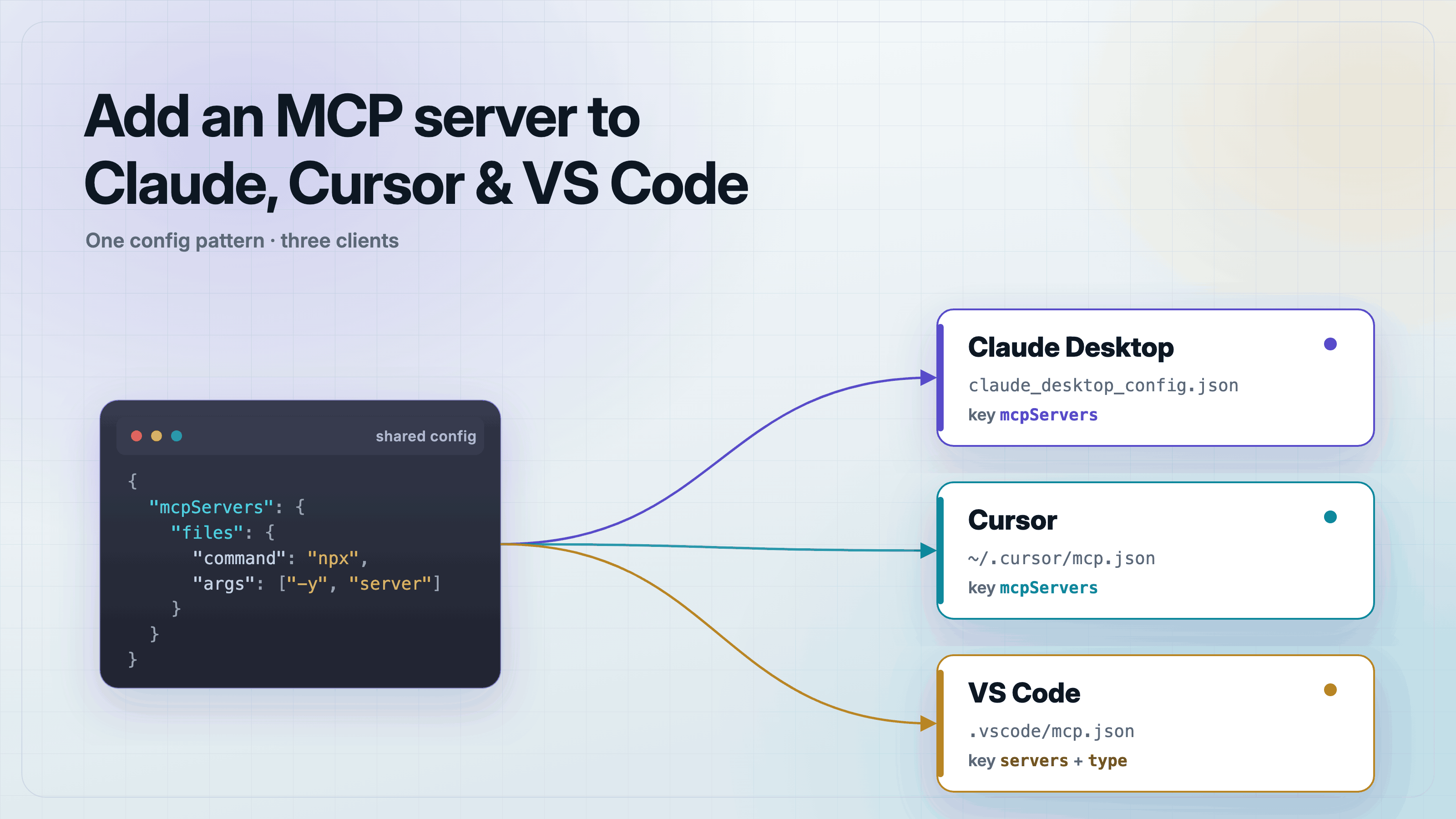
Every MCP client works the same way. It reads a small JSON file that lists your servers. Each entry is either a local server the client starts as a process, or a remote server it reaches over HTTP. Claude Desktop, Cursor, and VS Code differ only in where that file lives and what the top-level key is called. Learn the pattern once and you can wire a server into any of them.
The universal pattern: give the client a command or a URL
An MCP client needs one thing: how to reach the server. For a local server, you give it a command and its args, and the client spawns that process and talks to it over stdio (standard input and output). For a remote server, you give it a url and the client connects over HTTP. Everything else, the tool names, the schemas, the prompts, is discovered automatically once the connection opens.
So the config is short. Here is the minimal local-server entry that every client understands, give or take the wrapping key:
{
  "command": "npx",
  "args": ["-y", "@modelcontextprotocol/server-filesystem", "/Users/you/projects"]
}
That runs a filesystem server on demand with npx. Swap in python, node, uv, or the path to a server you built yourself. The rest of this post shows where that entry goes in each client.
How to add an MCP server to Claude Desktop
Open the config file, add your server under mcpServers, save, and fully restart Claude Desktop. The file lives here:
- macOS:
~/Library/Application Support/Claude/claude_desktop_config.json - Windows:
%APPDATA%\Claude\claude_desktop_config.json
If the file does not exist yet, create it. Then add one entry per server:
{
  "mcpServers": {
    "filesystem": {
      "command": "npx",
      "args": ["-y", "@modelcontextprotocol/server-filesystem", "/Users/you/projects"]
    },
    "postgres": {
      "command": "npx",
      "args": ["-y", "@modelcontextprotocol/server-postgres"],
      "env": {
        "DATABASE_URL": "postgresql://localhost/mydb"
      }
    }
  }
}
Quit Claude Desktop completely and reopen it. Closing the window is not enough, because the app keeps running in the background. After the restart, the server's tools appear in the client. Keep secrets like DATABASE_URL in the env block, not in the args.
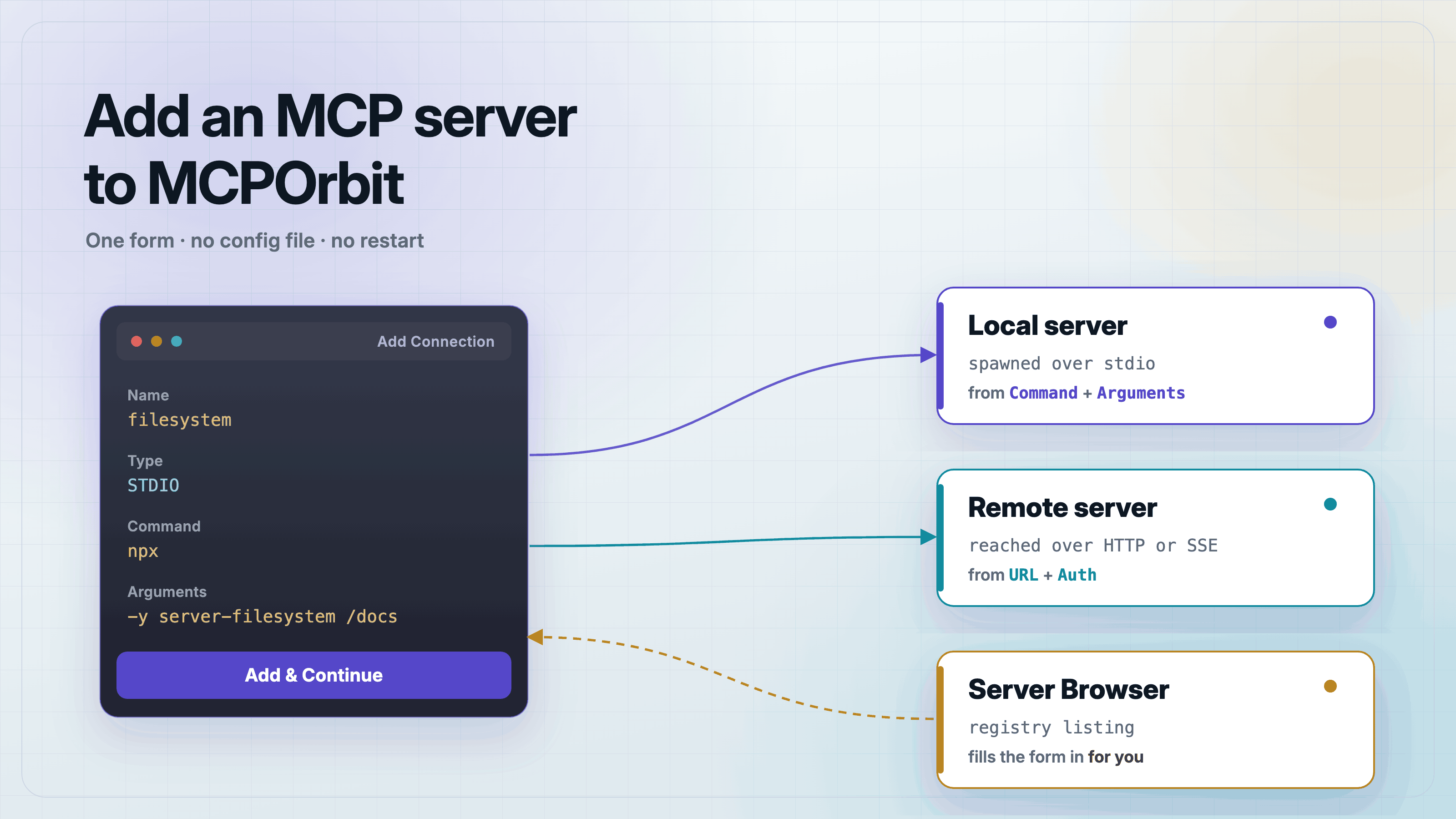
Both of those servers go into MCPOrbit as a form instead of a file entry, and the fields line up with the JSON above almost one for one. MCPOrbit has a Command field and a separate Arguments (space-separated) field, so filesystem goes in as npx in Command and -y @modelcontextprotocol/server-filesystem /Users/you/projects in Arguments, which is the args array above with spaces in place of the commas. postgres maps across the same way, with the DATABASE_URL entry moved into Environment Variables, which takes the same JSON object shape you see above. There is no file to keep valid and nothing to quit and reopen. The whole flow is at /blog/add-an-mcp-server-to-mcporbit.
How to add an MCP server to Cursor
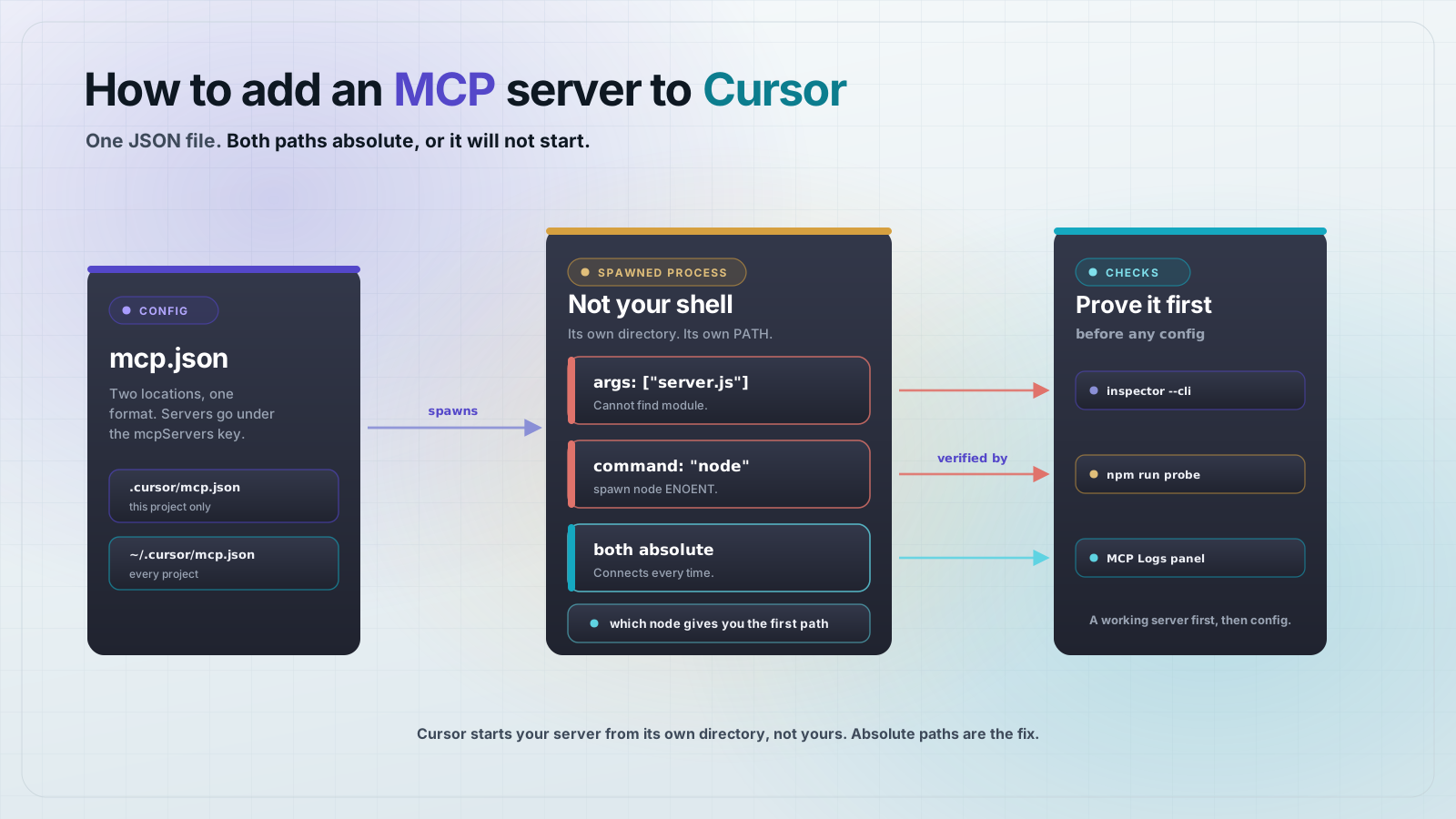
Cursor uses the same mcpServers shape as Claude Desktop. Only the file location changes. Use a global file for servers you want everywhere, or a project file for servers scoped to one repo:
- Global:
~/.cursor/mcp.json - Per project:
.cursor/mcp.jsonin the repo root
The server block is identical to the Claude Desktop one:
{
  "mcpServers": {
    "filesystem": {
      "command": "npx",
      "args": ["-y", "@modelcontextprotocol/server-filesystem", "."]
    }
  }
}
You can also add servers from Settings, MCP, without editing the file by hand. Once the server connects, switch the chat to Agent mode so the model is allowed to call its tools.
How to add an MCP server to VS Code
VS Code has had native MCP support since version 1.99 (early 2026), used through Copilot Chat in agent mode. Its config is close to the others, with two differences: the top-level key is servers, not mcpServers, and every server needs an explicit type. Put a workspace config in .vscode/mcp.json:
{
  "servers": {
    "filesystem": {
      "type": "stdio",
      "command": "npx",
      "args": ["-y", "@modelcontextprotocol/server-filesystem", "${workspaceFolder}"]
    }
  }
}
For secrets, VS Code prefers a prompted input over a plaintext env. Declare an inputs entry and reference it with ${input:name}. Copilot asks for the value the first time it starts the server, then stores it securely:
{
  "inputs": [
    {
      "id": "pg-url",
      "type": "promptString",
      "description": "Postgres connection URL",
      "password": true
    }
  ],
  "servers": {
    "postgres": {
      "type": "stdio",
      "command": "npx",
      "args": ["-y", "@modelcontextprotocol/server-postgres"],
      "env": {
        "DATABASE_URL": "${input:pg-url}"
      }
    }
  }
}
Open the Chat view, switch to Agent mode, and the server's tools are available to the model.
Local stdio server or remote HTTP server: which do I configure?
Use a local (stdio) entry when the server runs on your own machine, which is the common case for development and for tools that touch local files or a local database. The client starts the process for you, so there is no port and no auth to manage.
Use a remote entry when the server runs somewhere else and you connect over the network. Instead of command and args, you give a url. Cursor, VS Code, and Claude Code accept a remote URL directly. Claude Desktop reaches remote servers through its Connectors, or through a local proxy command.
{
  "mcpServers": {
    "my-remote": {
      "url": "https://mcp.example.com/mcp"
    }
  }
}
A remote server is shared infrastructure, so it needs authentication and TLS. The stdio versus Streamable HTTP tradeoff, and how to deploy a remote server, are covered in the guides linked below.
Why isn't my MCP server showing up?
Two problems cause almost every failed setup. First, a JSON syntax error, usually a trailing comma or a missing brace, so the client silently ignores the whole file. Paste it into a JSON validator if the server never appears. Second, you did not fully restart the client. Quit it completely and reopen, then check again.
If the server connects but the model never calls it, make sure the chat is in Agent mode. In ask or edit mode the client will not invoke tools.
Frequently asked questions
- Where is the Claude Desktop MCP config file?
- On macOS it is
~/Library/Application Support/Claude/claude_desktop_config.json. On Windows it is%APPDATA%\Claude\claude_desktop_config.json. Create the file if it does not exist, add your server undermcpServers, and fully restart Claude Desktop. - Can I use the same MCP config in Claude Desktop and Cursor?
- Yes. Both use the same
mcpServersobject withcommand,args, and optionalenv, so a server block that works in one works in the other. Only the file location differs:claude_desktop_config.jsonversus~/.cursor/mcp.json. - Why is VS Code's MCP config different?
- VS Code uses a top-level
serverskey instead ofmcpServers, and it requires an explicittypefield (stdio,http, orsse) on each server. It also supports a promptedinputsarray so secrets are not stored in plaintext. - How do I add a remote MCP server instead of a local one?
- Replace
commandandargswith aurlfield pointing at the server's HTTP endpoint. Remote servers run on shared infrastructure, so they should sit behind authentication and TLS. - My MCP server is not showing up. What is wrong?
- Almost always a JSON syntax error in the config file, or you did not fully restart the client. Validate the JSON, then quit and reopen the app. If it connects but tools are never called, switch the chat to Agent mode.
Built a server and want it in front of the model? Point your client at it with the config above, restart, and switch to Agent mode. MCPOrbit is a free desktop client that connects to the same server, so you can call every tool by hand before you trust it in Claude.
About the author
Mark
Head of Marketing, MCPOrbit
Mark leads marketing at MCPOrbit, the free desktop client for the Model Context Protocol. He writes the build-it and reliability guides, and the code in them is run before it ships.