Tutorial
How to add an MCP server to VS Code
VS Code reads MCP servers from .vscode/mcp.json under a servers key, not mcpServers. Set cwd or your server scans the wrong folder and never says so.
Mark
Head of Marketing, MCPOrbit
- Published
- Updated
- · Updated
- Read time
- · 8 min read
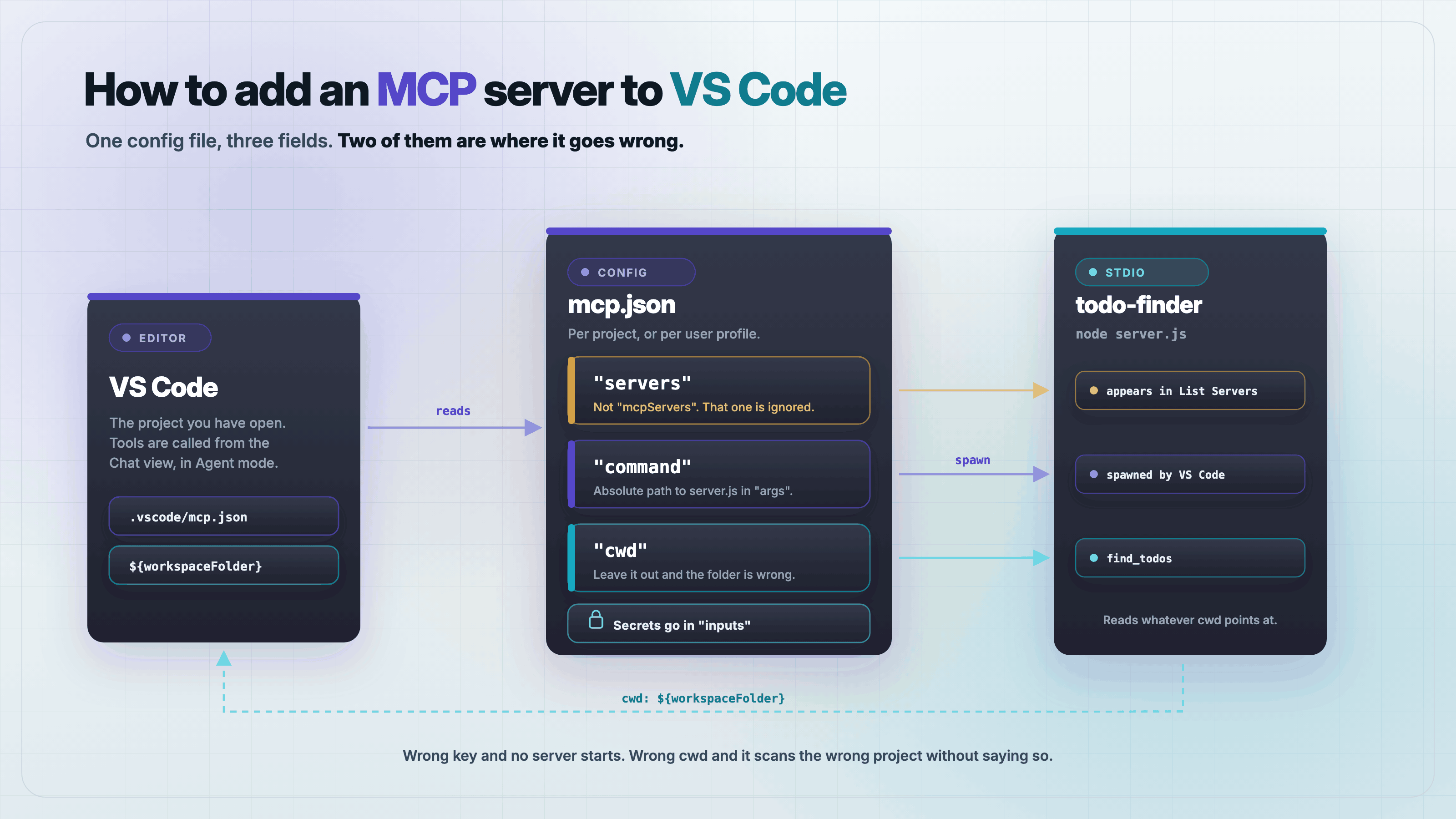
To add a Model Context Protocol (MCP) server to VS Code, create .vscode/mcp.json in your project and list the server under a top-level servers key. Then open Chat, switch to Agent mode, and the tools are there.
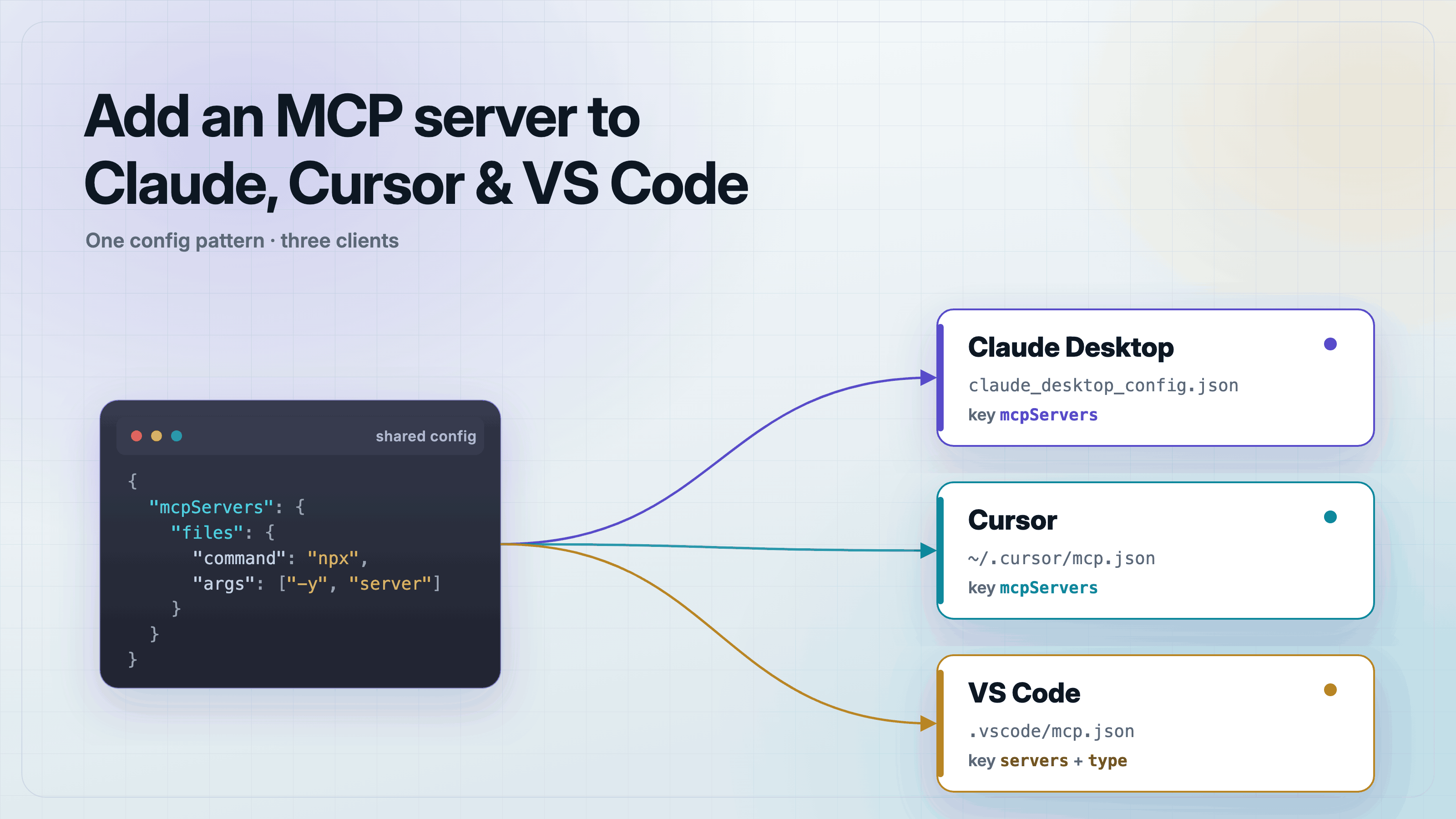
Two details cause most of the failures, and neither one produces a useful error. VS Code uses servers as the top-level key, while Claude Desktop and Cursor use mcpServers. Paste a config from either of those and VS Code reads an empty file. The second is cwd. If your server touches the filesystem and you leave cwd out, it runs in the wrong directory and answers confidently from there.
Where does VS Code look for MCP config?
There are two locations. A workspace file at .vscode/mcp.json, which lives in the repo and is the one to commit so your team gets the same servers. And a user profile file that applies to every project, which you open with the MCP: Open User Configuration command from the Command Palette.
Use the workspace file when the server is specific to that codebase. Use the profile file for general tools you always want. If you would rather not write JSON by hand, MCP: Add Server walks you through it and writes the same file.
A server worth pointing VS Code at
Here is a small server that scans your workspace for TODO, FIXME, and HACK comments and reports them with file and line number. It is a good test case because it depends on the working directory, which is exactly where the VS Code setup goes wrong.
Keep it outside the project you plan to open. A single copy at something like ~/mcp-servers/todo-finder serves every workspace. Start with package.json:
{
  "name": "todo-finder-mcp",
  "version": "1.0.0",
  "private": true,
  "type": "module",
  "dependencies": {
    "@modelcontextprotocol/server": "2.0.0",
    "zod": "4.4.3"
  }
}
Then server.js. Two things in it are deliberate. It reads its scan root from process.cwd(), so the config decides which project it looks at. And it logs with console.error, never console.log, because stdout carries the protocol.
// server.js
import { readdir, readFile } from "node:fs/promises";
import { join, relative, extname } from "node:path";
import { McpServer } from "@modelcontextprotocol/server";
import { serveStdio } from "@modelcontextprotocol/server/stdio";
import { z } from "zod";

// The workspace root. VS Code sets cwd from the config; everything else
// resolves against it, so nothing here depends on where node was launched.
const ROOT = process.cwd();

const SKIP = new Set(["node_modules", ".git", "dist", "build", ".next"]);
const EXTS = new Set([".js", ".mjs", ".ts", ".tsx", ".jsx", ".py", ".go", ".rs", ".md"]);
const MARKER = /\b(TODO|FIXME|HACK)\b:?\s*(.*)$/;

async function* walk(dir) {
  for (const entry of await readdir(dir, { withFileTypes: true })) {
    if (entry.name.startsWith(".") || SKIP.has(entry.name)) continue;
    const full = join(dir, entry.name);
    if (entry.isDirectory()) yield* walk(full);
    else if (EXTS.has(extname(entry.name))) yield full;
  }
}

async function findTodos(kind) {
  const hits = [];
  for await (const file of walk(ROOT)) {
    const text = await readFile(file, "utf8");
    text.split("\n").forEach((line, i) => {
      const m = line.match(MARKER);
      if (!m) return;
      if (kind !== "ALL" && m[1] !== kind) return;
      hits.push({ file: relative(ROOT, file), line: i + 1, kind: m[1], note: m[2].trim() });
    });
  }
  return hits;
}

// serveStdio takes a factory, not a server instance.
function createServer() {
  const server = new McpServer({ name: "todo-finder", version: "1.0.0" });

  server.registerTool(
    "find_todos",
    {
      title: "Find TODO comments",
      description:
        "Scan the workspace for TODO, FIXME, and HACK comments. Returns the file, line number, and note for each one.",
      inputSchema: {
        kind: z
          .enum(["TODO", "FIXME", "HACK", "ALL"])
          .default("ALL")
          .describe("Which marker to look for. ALL returns every kind."),
      },
    },
    async ({ kind }) => {
      const hits = await findTodos(kind ?? "ALL");
      console.error(`[todo-finder] scanned ${ROOT}, ${hits.length} hit(s)`);
      if (hits.length === 0) {
        return { content: [{ type: "text", text: `No ${kind ?? "ALL"} markers found under ${ROOT}.` }] };
      }
      const lines = hits.map((h) => `${h.file}:${h.line}  ${h.kind}  ${h.note}`);
      return { content: [{ type: "text", text: lines.join("\n") }] };
    }
  );

  return server;
}

// stdout belongs to the protocol. All logging goes to stderr.
console.error("[todo-finder] starting on stdio, root:", ROOT);
await serveStdio(createServer);
Install it with npm install in the server directory. That is the whole server.
Check the server runs before you touch any config
Wire an untested server into an editor and every failure looks the same. Drive it with a client first, from the server's own directory, pointing at a project you want to scan:
// probe-client.mjs
import { Client } from "@modelcontextprotocol/client";
import { StdioClientTransport } from "@modelcontextprotocol/client/stdio";

const transport = new StdioClientTransport({
  command: "node",
  args: [process.argv[2]],  // absolute path to server.js
  cwd: process.argv[3],     // the workspace to scan
  stderr: "inherit",
});
const client = new Client({ name: "probe", version: "1.0.0" });
await client.connect(transport);

const tools = await client.listTools();
console.log("TOOLS:", tools.tools.map((t) => t.name).join(", "));

const res = await client.callTool({ name: "find_todos", arguments: { kind: "ALL" } });
console.log("RESULT:\n" + res.content[0].text);
await client.close();
Add @modelcontextprotocol/client at 2.0.0 as a dev dependency and run it. Against a project with a few markers in it, the output is:
[todo-finder] starting on stdio, root: /Users/you/code/my-project
TOOLS: find_todos
[todo-finder] scanned /Users/you/code/my-project, 4 hit(s)
RESULT:
README.md:3  TODO  write the setup instructions
src/checkout.js:2  TODO  apply the seasonal discount table
src/checkout.js:7  FIXME  this ignores partial refunds and always refunds the full order
src/session.js:2  HACK  re-issuing on every call until the refresh endpoint lands
The first and third lines are the server's own stderr logging. Everything else is the protocol answering. That is a working server, so anything that breaks from here is configuration.
The config file
Create .vscode/mcp.json in the project you want to scan. Use an absolute path to server.js, because VS Code does not resolve it against your project:
{
  "servers": {
    "todo-finder": {
      "type": "stdio",
      "command": "node",
      "args": ["/Users/you/mcp-servers/todo-finder/server.js"],
      "cwd": "${workspaceFolder}"
    }
  }
}
The key under servers is the name shown in the UI. type is stdio for a local server. command and args are what gets spawned. cwd is the working directory, and ${workspaceFolder} expands to the root of whatever project you have open.
Save the file. VS Code shows a Start action above the server block, and MCP: List Servers gives you start, stop, and the server's output log. Open Chat, switch the mode dropdown to Agent, and ask it to find the TODOs.
A server that already runs somewhere over HTTP is configured with url instead of command, and takes headers for auth:
{
  "servers": {
    "todo-finder": {
      "type": "http",
      "url": "https://mcp.example.com/mcp"
    }
  }
}
Why an mcpServers block does nothing
This is the first VS Code specific trap, and it catches people who already have a server working somewhere else. Claude Desktop and Cursor both nest servers under mcpServers. VS Code does not. It reads servers.
So this file, copied straight out of a working Claude Desktop config, is valid JSON and completely inert:
{
  "mcpServers": {
    "todo-finder": {
      "command": "node",
      "args": ["/Users/you/mcp-servers/todo-finder/server.js"]
    }
  }
}
There is no crash and no warning, because as far as VS Code is concerned you configured zero servers. The tell is that MCP: List Servers comes up empty and no Start action appears above the block. If you see that, check the top-level key before you check anything else.
Why a missing cwd gives you real but wrong answers
The second trap is worse, because the server starts, the tool call succeeds, and the model gets an answer. The answer is just about the wrong directory.
Drop cwd from the config and the server inherits whatever working directory it was spawned with, which is not your project. Running the same tool call both ways makes the failure obvious:
--- NO cwd in config (spawned from the server's own directory) ---
server.js:14  TODO  |FIXME|HACK)\b:?\s*(.*)$/;
server.js:48  TODO  comments",
server.js:50  TODO  , FIXME, and HACK comments. Returns the file, line number, and note for each one.",
server.js:53  TODO  ", "FIXME", "HACK", "ALL"])

--- cwd set to the workspace root ---
README.md:3  TODO  write the setup instructions
src/checkout.js:2  TODO  apply the seasonal discount table
src/checkout.js:7  FIXME  this ignores partial refunds and always refunds the full order
src/session.js:2  HACK  re-issuing on every call until the refresh endpoint lands
The first run scanned the server's own source and matched the string TODO inside its own regex and tool description. Those are real hits from a real scan of a real directory. They are simply not your project, and nothing in the transcript says so. The model reports them as your TODOs.
This is the VS Code version of a bug other editors give you as a crash. A server started with a relative path in Cursor fails loudly with Cannot find module. Here the path is absolute and correct, so the process starts fine, and only the data is wrong. Set cwd on every server that reads the filesystem.
Keeping API keys out of the file
The workspace file is meant to be committed, so a plaintext key in env ends up in your repo. VS Code has inputs for this. Declare the value once and reference it with ${input:id}, and VS Code prompts on first run and stores the answer:
{
  "inputs": [
    {
      "type": "promptString",
      "id": "api-key",
      "description": "API key for the upstream service",
      "password": true
    }
  ],
  "servers": {
    "todo-finder": {
      "type": "stdio",
      "command": "node",
      "args": ["/Users/you/mcp-servers/todo-finder/server.js"],
      "cwd": "${workspaceFolder}",
      "env": { "API_KEY": "${input:api-key}" }
    }
  }
}
password: true masks the prompt and keeps the value out of the log. There is also an envFile field if you already keep a local .env around.
Editing the server without restarting by hand
While you are still writing the server, add a dev block. watch takes a glob and restarts the server when a file changes, and debug attaches a debugger for Node and Python stdio servers:
{
  "servers": {
    "todo-finder": {
      "type": "stdio",
      "command": "node",
      "args": ["/Users/you/mcp-servers/todo-finder/server.js"],
      "cwd": "${workspaceFolder}",
      "dev": { "watch": "/Users/you/mcp-servers/todo-finder/**/*.js" }
    }
  }
}
If you change a tool's name or its schema, also run MCP: Reset Cached Tools. VS Code caches the tool list, and a rename can otherwise leave a stale entry in the picker.
Does a stray console.log really break the connection?
The usual advice is that one console.log in a stdio server corrupts the stream and kills the session. That is worth testing, because it is not quite what happens with the 2.0.0 client.
Adding a console.log to the tool handler and calling it again, the connection stayed up and the call returned normally. The reason is in the client's read loop: it parses messages in a try block, hands any parse failure to an onerror callback, and keeps going. An unparseable line is skipped, not fatal.
Do not take that as permission. That leniency belongs to one client library, and VS Code ships its own MCP client with its own parser. A line that happens to be skipped in a probe can still drop a response or break a framed message elsewhere. Log to stderr, which is where VS Code shows it in the server output pane anyway.
Frequently asked questions
Frequently asked questions
- Where is the VS Code MCP config file?
- For a single project it is
.vscode/mcp.jsonin the project root. For every project, use the Command Palette command MCP: Open User Configuration, which opens anmcp.jsonin your user profile folder. - Why is my MCP server not showing up in VS Code?
- The most common cause is the top-level key. VS Code reads
servers, while Claude Desktop and Cursor usemcpServers, and a config with the wrong key is silently ignored. Check MCP: List Servers, and if it is empty the file was never understood. The other common cause is being in Ask or Edit mode instead of Agent mode. - Can I use the same MCP config in VS Code and Claude Desktop?
- Not without editing it. The server block itself is nearly identical, but the wrapper differs: VS Code needs
serversand acceptstype,cwd,dev, andinputs, while Claude Desktop needsmcpServers. Copy the inner block and rewrite the outer key. - What does ${workspaceFolder} do in mcp.json?
- It expands to the absolute path of the currently open project. Setting
cwdto${workspaceFolder}makes one installed server work across every project you open, instead of hardcoding a single path. - How do I pass an API key to an MCP server in VS Code?
- Add an
inputsarray with apromptStringentry andpassword: true, then reference it from the server'senvas${input:your-id}. VS Code prompts for the value on first run and keeps it out of the committed file. - Do MCP tools work in Copilot Ask mode?
- No. Tools are only invoked in Agent mode. If the server is running and the tools are listed but never called, check the mode dropdown in the Chat view first.
Once the server is connected, the work moves to whether the model picks the right tool at the right time. That is mostly a function of the tool description, not the config.
Point VS Code at a server, then connect the same server in MCPOrbit and call its tools by hand. You see the exact arguments and responses the model would get, so you can tell whether a description is doing its job.
About the author
Mark
Head of Marketing, MCPOrbit
Mark leads marketing at MCPOrbit, the free desktop client for the Model Context Protocol. He writes the build-it and reliability guides, and the code in them is run before it ships.