Field notes
How to add an MCP server to Cursor
Cursor loads MCP servers from one mcp.json file. The config is short. Two common things stop it starting, a relative path and a missing node binary, and both are fixable.
Mark
Head of Marketing, MCPOrbit
- Published
- Updated
- · Updated
- Read time
- · 8 min read
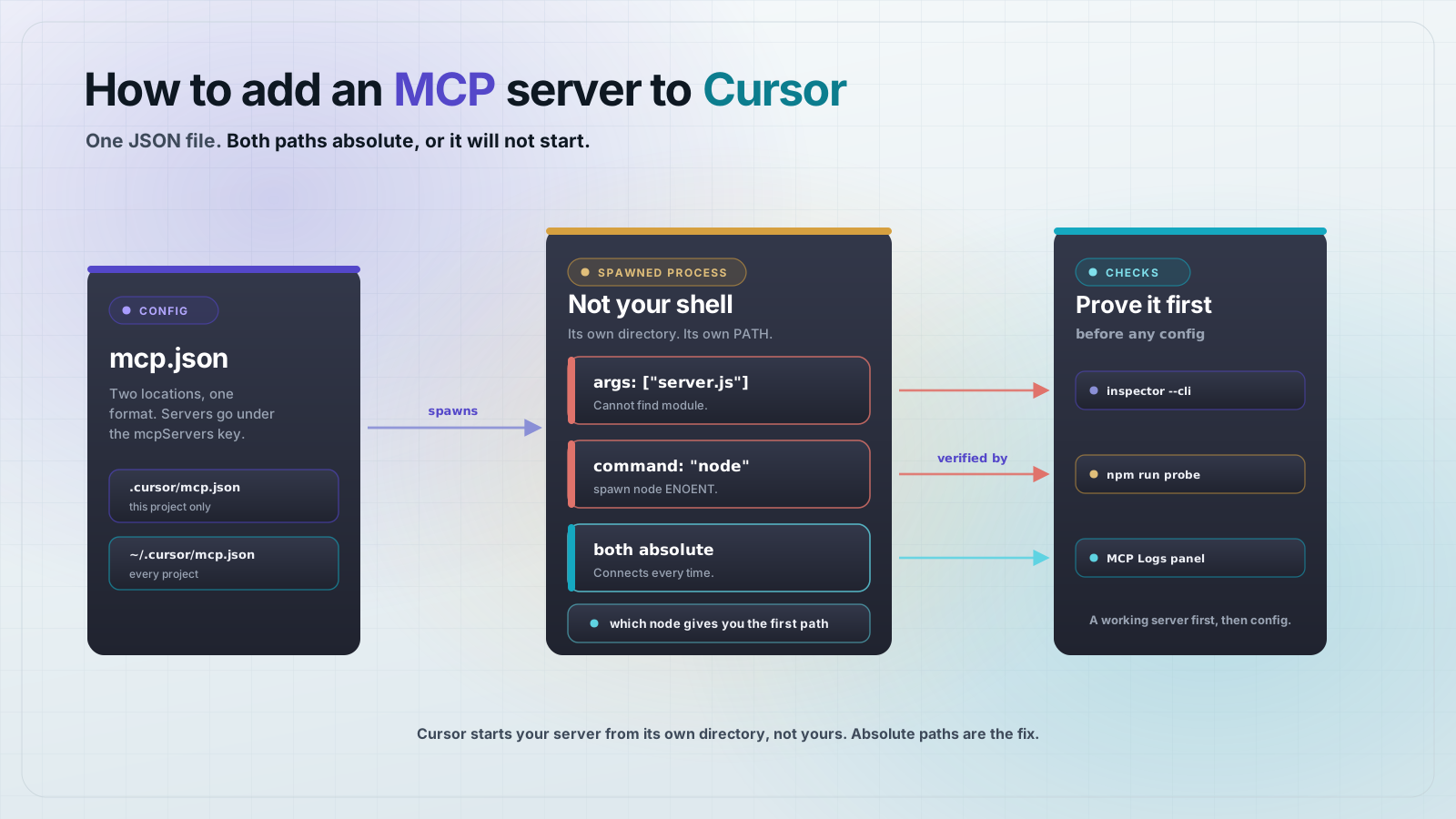
To add a Model Context Protocol (MCP) server to Cursor, put a mcp.json file in one of two places: .cursor/mcp.json in your project root for a server only that project sees, or ~/.cursor/mcp.json in your home directory for one every project sees. The file lists your server under a top-level mcpServers key with a command and an args array. Use absolute paths in both.
That last sentence is the whole post. Cursor starts your server as a child process, and it does not start it from your project directory or from your shell. So a config that works when you run it by hand can fail inside Cursor, and the error you get says nothing about paths. Both failure modes are reproduced below against a real server, with the exact messages each one produces.
Where does Cursor look for MCP config?
Cursor reads two files. A project-scoped .cursor/mcp.json in your project root, and a global ~/.cursor/mcp.json in your home directory. Both use the same format, so you can move an entry between them by copying it across. Project scope is the better default for a server that only makes sense inside one repository, because the config travels with the code and your teammates get it when they clone.
A server worth pointing Cursor at
Here is a small server that reads your project's CHANGELOG.md and returns the most recent entries. It is a useful thing to give an editor, because it lets the model answer questions about what changed recently without you pasting the file in. Three files, no build step. Every block below was copied out of a project that was installed clean and run end to end.
Create a directory, then add package.json:
{
  "name": "changelog-mcp",
  "version": "1.0.0",
  "type": "module",
  "scripts": {
    "start": "node server.js",
    "probe": "node probe.js"
  },
  "dependencies": {
    "@modelcontextprotocol/client": "2.0.0",
    "@modelcontextprotocol/server": "2.0.0",
    "zod": "4.2.1"
  }
}
Then server.js. Note the two things it does deliberately: it logs with console.error, never console.log, because on stdio stdout carries the protocol frames. And it resolves CHANGELOG.md relative to the module with import.meta.url, not relative to the working directory. That second choice is what makes it survive being spawned from somewhere unexpected, which is exactly what Cursor does.
// server.js
import { McpServer } from "@modelcontextprotocol/server";
import { StdioServerTransport } from "@modelcontextprotocol/server/stdio";
import { readFile } from "node:fs/promises";
import { z } from "zod";

const log = (...args) => console.error("[changelog]", ...args);

const server = new McpServer({ name: "changelog", version: "1.0.0" });

server.registerTool(
  "read_changelog",
  {
    title: "Read changelog",
    description:
      "Read the project CHANGELOG.md and return the most recent entries.",
    inputSchema: {
      limit: z
        .number()
        .int()
        .min(1)
        .max(20)
        .default(3)
        .describe("How many of the most recent entries to return."),
    },
  },
  async ({ limit }) => {
    const path = new URL("./CHANGELOG.md", import.meta.url);
    const text = await readFile(path, "utf8");
    const entries = text
      .split(/^## /m)
      .slice(1)
      .map((entry) => "## " + entry.trim());
    log(`read_changelog: ${entries.length} entries, returning ${limit}`);
    return {
      content: [{ type: "text", text: entries.slice(0, limit).join("\n\n") }],
    };
  },
);

log("starting on stdio");
await server.connect(new StdioServerTransport());
And a CHANGELOG.md for it to read. Any file with ## headings works. This one is the fixture used for every output shown below:
# Changelog

## 1.4.0 - 2026-08-20
Added a retry budget to the sync worker.

## 1.3.2 - 2026-08-11
Fixed a crash when the config file was empty.

## 1.3.1 - 2026-07-29
Pinned the transport dependency.

## 1.3.0 - 2026-07-14
First public release.
Check the server runs before you touch any config
Wire a broken server into an editor and you get one signal: it did not work. Check it first and you know which half to blame. The MCP Inspector runs your server the same way a client does, from your terminal, where you can see everything.
npm install
npx @modelcontextprotocol/inspector@2.4.0 --cli node server.js \
  --method tools/list
The [changelog] line is the server's own stderr logging. Everything after it is the protocol response:
[changelog] starting on stdio
{
  "tools": [
    {
      "name": "read_changelog",
      "title": "Read changelog",
      "description": "Read the project CHANGELOG.md and return the most recent entries.",
      "inputSchema": {
        "type": "object",
        "properties": {
          "limit": {
            "description": "How many of the most recent entries to return.",
            "default": 3,
            "type": "integer",
            "minimum": 1,
            "maximum": 20
          }
        },
        "$schema": "https://json-schema.org/draft/2020-12/schema"
      }
    }
  ]
}
Then call the tool for real:
npx @modelcontextprotocol/inspector@2.4.0 --cli node server.js \
  --method tools/call \
  --tool-name read_changelog \
  --tool-arg limit=2
[changelog] starting on stdio
[changelog] read_changelog: 4 entries, returning 2
{
"content": [
{
"type": "text",
"text": "## 1.4.0 - 2026-08-20\nAdded a retry budget to the sync worker.\n\n## 1.3.2 - 2026-08-11\nFixed a crash when the config file was empty."
}
]
}That is a working server. Anything that goes wrong from here is configuration, not code, and that is a much smaller place to look.
The config file
Create .cursor/mcp.json in your project root. Replace both paths with real ones from your own machine:
{
  "mcpServers": {
    "changelog": {
      "command": "/opt/homebrew/bin/node",
      "args": ["/Users/you/code/changelog-mcp/server.js"]
    }
  }
}
The key under mcpServers is the name you will see in Cursor. command is the program to run and args are its arguments. If your server needs secrets, add an env object beside them, which Cursor passes to the process:
{
  "mcpServers": {
    "changelog": {
      "command": "/opt/homebrew/bin/node",
      "args": ["/Users/you/code/changelog-mcp/server.js"],
      "env": {
        "API_KEY": "value"
      }
    }
  }
}
A server that already runs somewhere over HTTP is configured with url instead of command, and takes headers rather than env:
{
  "mcpServers": {
    "changelog": {
      "url": "http://localhost:3000/mcp",
      "headers": {
        "API_KEY": "value"
      }
    }
  }
}
Cursor's docs describe enabling a server from the Customize panel in the sidebar, where each server has a toggle. They do not say whether editing mcp.json reloads the server automatically or needs a restart. If a change does not seem to take effect, restart Cursor before you start debugging the config.
Why a relative path fails
This is the first of the two path bugs, and it is the more common one. The config looks reasonable:
{
  "mcpServers": {
    "changelog": {
      "command": "node",
      "args": ["server.js"]
    }
  }
}
It works in your terminal because your terminal is already sitting in the project directory. Cursor is not. To reproduce what it does, spawn the same server from a different working directory. The client below is the MCP client SDK with cwd set to /, which is the same mechanism Cursor uses:
// probe-cwd.js
import { Client } from "@modelcontextprotocol/client";
import { StdioClientTransport } from "@modelcontextprotocol/client/stdio";

const transport = new StdioClientTransport({
  command: "node",
  args: ["server.js"],
  cwd: "/",
});

const client = new Client({ name: "probe", version: "1.0.0" });
await client.connect(transport);
Node resolves server.js against the working directory it was given, so it looks for /server.js and does not find it. The process exits before it ever speaks the protocol, and the client reports only that the connection closed:
Error: Cannot find module '/server.js'
    at Module._resolveFilename (node:internal/modules/cjs/loader:1475:15)
    at wrapResolveFilename (node:internal/modules/cjs/loader:1048:27)
    ...

FAILED: SdkError | Connection closed
Connection closed is all the client knows. The useful line is on the server's stderr, which is why the MCP Logs panel matters. Cursor's docs describe reaching it by opening the Output panel with Cmd+Shift+U and picking MCP Logs from the dropdown. Change args to the absolute path and the same spawn connects.
Why a bare node command fails
The second bug is nastier, because node genuinely does work when you type it. Your shell builds its PATH from your profile, and a version manager like nvm or a Homebrew install adds a directory there. A desktop application launched from the dock never runs that profile, so it searches a much shorter PATH.
Spawning the server with a minimal PATH reproduces it exactly:
const transport = new StdioClientTransport({
  command: "node",
  args: ["/Users/you/code/changelog-mcp/server.js"],
  env: { PATH: "/usr/bin:/bin:/usr/sbin:/sbin" },
});
FAILED: Error | spawn node ENOENTENOENT here does not mean your server is missing. It means the node binary is. The fix is to name the binary by its full path, which you can get with which node. With an absolute binary and an absolute script, the same spawn connects under that stripped PATH and from a foreign working directory:
$ which node
/opt/homebrew/bin/node

[changelog] starting on stdio
CONNECTED. tools: read_changelog
That is the same config shown earlier. Both paths absolute, nothing left for the environment to get wrong.
Frequently asked questions
Frequently asked questions
- Where is the Cursor MCP config file?
- There are two.
.cursor/mcp.jsonin a project root configures servers for that project only.~/.cursor/mcp.jsonin your home directory configures servers for every project. Both files use the same format, with servers listed under a top-levelmcpServerskey. - Why is my MCP server not showing up in Cursor?
- Usually a path problem. Cursor spawns the server from its own working directory, so a relative path in
argsresolves somewhere unexpected and the process exits immediately. It also runs without your shell's PATH, so a barenodecommand can fail withspawn node ENOENTeven thoughnodeworks in your terminal. Use an absolute path for both the binary and the script. - Should I use the project or the global Cursor MCP config?
- Use
.cursor/mcp.jsonin the project when the server only makes sense for that codebase, since the config is committed alongside the code. Use~/.cursor/mcp.jsonfor general-purpose servers you want in every project. - How do I see MCP server logs in Cursor?
- Cursor's docs describe opening the Output panel with Cmd+Shift+U and selecting MCP Logs from the dropdown. Because stdout carries the protocol on a stdio server, your own logging has to go to stderr with
console.errorfor it to appear there. - Can I add a remote MCP server to Cursor?
- Yes. Instead of
commandandargs, give the entry aurlpointing at the server's endpoint, and use aheadersobject rather thanenvfor anything it needs to authenticate. - Do I need to restart Cursor after editing mcp.json?
- Cursor's documentation does not state whether the file is reloaded automatically. If an edit does not appear to take effect, restart Cursor before assuming the config itself is wrong.
Once the server is running, the work moves to what it exposes. Tool descriptions are what the model reads to decide when to call something, and they are worth more attention than the transport ever needs. MCPOrbit shows you every tool a server publishes with its full description and input schema, so you can read them the way the model does before you hand the server to a team.
About the author
Mark
Head of Marketing, MCPOrbit
Mark leads marketing at MCPOrbit, the free desktop client for the Model Context Protocol. He writes the build-it and reliability guides, and the code in them is run before it ships.